Creating Tasks
The Billing Task Wizard found in Task Scheduling in the Administration tab can be used to bulk-create statements or apply charges or booking fees to customer accounts.
To create a task, use [Billing Task Wizard].
Clicking on this button will open a pop-up screen. Follow the instructions on the screen to complete your required additions/changes.
Select an account type to create the Billing task:
- Customer - This includes Customer and Business accounts. It allows Statements, Charges or Booking Fees tasks to be created.
- Third-Party (older versions of MediBooks may show Company) - Allows for the creation of statement tasks.
- Rebate - Allows for the creation of statement tasks.
Click [Next].
The next page provides options for which type of billing task should be created. These are:
- Statement - This is used to automatically generate statements for customers who are part of the billing task. These can be viewed or printed from the Statement Delivery page
- Charges - This is used to create draft invoices for customers who are members of a specific third party.
- Booking Fees - This task is used to create draft invoices with booking fees for customers that meet the criteria specified in the task (i.e. accounts with an outstanding balance).
Statement Tasks
To create a statement task open the Billing Task Wizard and select [Statement]. Then click [Next].
On the next page, you will need to enter a title and description (optional) for the task. Then click [Next].
On the next page set the number of previous days that will be excluded, for example, if a customer has an unpaid debt that is 5 days old and the exclusion is set to 10 days the debt will not be counted when the task is run.
Then press [Next].
This will open a final page where you can review the billing task. If it is correct use [Finish] to create the task.
Charges Tasks
To create a charges task select [Charges]. Then click [Next].
On the next page, you will need to enter a title and description (optional) for the task. Then click [Next].
On the next page press [Next].
Use the dropdown to select the Third Party that the bills will be raised against.
Then click [Create Invoice].
Use the Checkboxes to add/remove customers from the bulk invoice.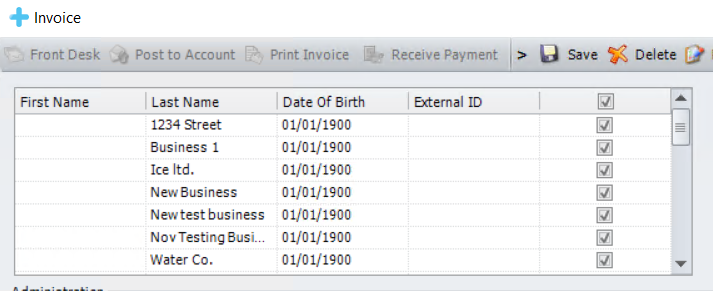
Then fill out the rest of the invoice as usual, selecting a branch, adding bill items and adding notes if required.
Once completed, click [Save] then [Save Bill]. then click [Next].
Then click [Next].
Finally click [Finish].
Booking Fees Tasks
To create a booking fee task open the Billing Task Wizard and select [Booking Fees]. Then click [Next].
Add a title and description to the task, these will be shown on the Task Scheduling page. Then click [Next].
Click [Next].
Choose a Fee Type:
- Percent - calculates the booking fee based on the outstanding balance
- Flat Fee - uses a set amount for the booking fee
Next add the Fee Amount to specify the fee, and fill out the Fee Description to choose how the fee will appear on the invoice. Use the Fee Income Code dropdown to change how the charges will appear for reporting.
Finally use the dropdowns at the end to choose the Third Party and Consultant for the invoices.
Click [Next].
Select the relevant accout type checkboxes, then choose when the fee should be applied.
Click [Next].
Click [Finish].
Related Articles
Creating Invoices
In MediBooks there are a couple of different ways to create invoices. This article will provide a brief overview of each of these methods and where to find more information, as well as how to use the invoice screen. The most common way create ...Creating letters
Within MediBooks, there are a number of different ways to create and print letters. One way to create a letter is by attaching it to a statement, to learn how to do this please read: Statement Watermarks and Overdue Account Letters. Another thing to ...Creating Third Party Schedules
Open MediBooks and select the Third Party Tab. To begin using Third Party Schedules, you will need to ensure you have selected the [Schedule] Billing Type when creating the Third Party Provided this has been selected then you can create schedules as ...Creating a New User
Open MediBooks and select the System Tab. Then, open the User Management tab. Click on [New User]. Fill in the New User Details in the boxes provided. The [Type] field allows you to select what type of user you are creating. The [Access Control] ...Task Scheduling
The Task Scheduling page in MediBooks can be used for actions relating to tasks which are used to bulk-create statements or apply charges or booking fees to customer accounts. To learn how to create a task please read: Creating Tasks. To find the ...