Importing Bills into MediBooks Using the Clinical System
Support will help you set up the Report in EMIS. Once this has been completed, you will be able to export the results and import them into MediBooks.
Exporting the Consultations from EMIS
Right click on the report and click Run.
After the the report has finished running the Population Count, % and Last Run will be updated.
To export the results, right click on the report and select "View Results".
Click the Export button at the top of the page.
Select "CSV" and "Exclude report header", then click "OK".
Choose a name and location for the file and press "Save".
Then press "Close" on the report. Once the Clinical System File has been saved, do not open the file in Excel to prevent the data from being reformatted.
Importing the File into MediBooks
Go to the Home tab and open the Apps page.
Select "Import Medical System File"
Click choose file.
Locate the report that was exported from EMIS earlier, click on it, then click "Open".
In MediBooks, click "Import File".
Click the Valid button to only show the valid bills..
Use the checkbox at the top to select all bills.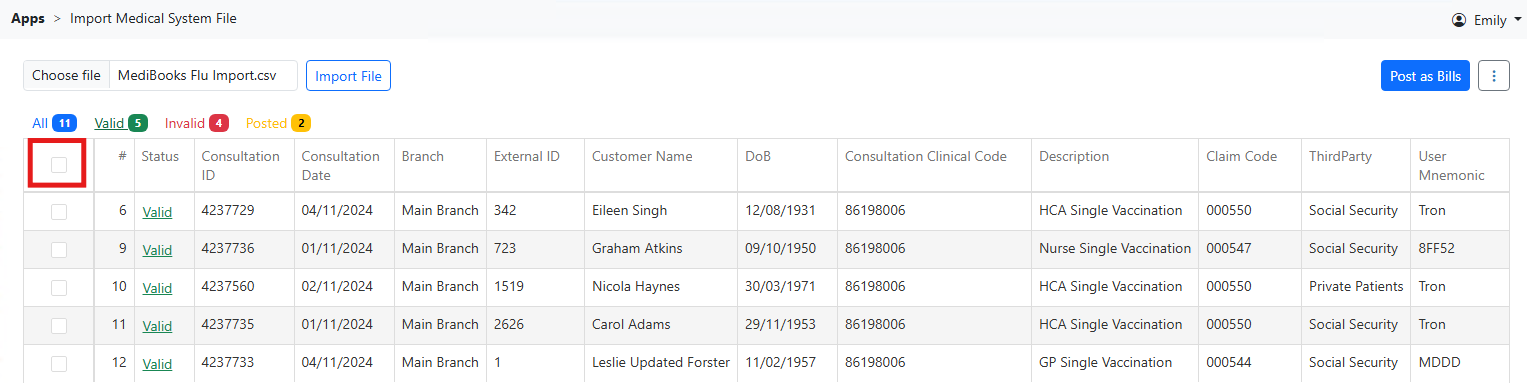
Click Post as Bills to post all bills.
Related Articles
Import Medical System File Errors
The Medical System File import may fail, with an error message, information on the causes of these errors is shown below. Error reading file This error occurs when the file contains some invalid data. Examples of issues which may cause this error ...MediBooks Authentication Methods
In MediBooks there are multiple different ways a user can log in, settings that can be used to view or change the current login method can be found on the "MediBooks Client Configuration" window, inside the section labeled "Authentication Method". ...Using WindowsLogon
Using WindowsLogon with MediBooks will enable MediBooks to automatically log in when a specified Windows account is being used. In order to use WindowsLogon it will need to be set as the authentication method on any computers that will be used. To ...Medibooks System Installer
The installation will require you to have administrator privileges on your local machine, please contact your IT administrator if you need assistance. If you are using Windows 8, select the [Run anyway] option when the UAC screen is displayed. Click ...Using the Invoice Screen
This article will focus on the invoice screen for customers, however certain aspects will apply to multi-recipient invoices as well. For information specific to Third Party invoice please read here: Creating Invoices Using Third Parties You can amend ...