Linking Branch Names from EMIS with MediBooks

This feature is available from 7.35.3 of MediBooks onwards.
Additional Medical System names can be assigned to branches within MediBooks. This removes the need to create multiple branches if the names in EMIS and MediBooks do not match. When the Medical System file is imported both the Medical System Branch name and the MediBooks Branch name will be used.
To see the Medical System branch names, go to System -> Branches, then right-click on the column headers and select "Column Picker".
From the Column Picker double-click on "Medical System Branch Name".
The Medical System Branch Names can be modified as with other branch information.
Once you have finished making any changes click [Save].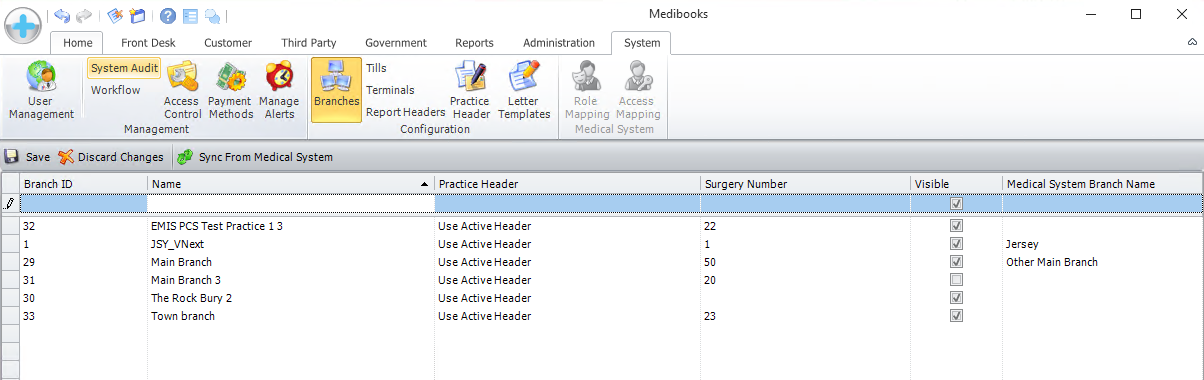
Related Articles
Linking Medical Practitioners in EMIS to MediBooks
This functionality is only available from v7.37.13 of MediBooks if you are using a version before this please contact support for assistance. The user Mnemonic in EMIS, is found under Configuration -> Organisation Configuration. Edit the desired user ...Syncing EMIS with MediBooks
To Sync, EMIS requires that any accounts used for syncing are enabled. As an alternative to enabling each account in EMIS, a default account can be added to the System Setup, which will be used if the current user does not have the required ...MediBooks not syncing with EMIS
If an error starting with "Client side failed to fetch the customer record..." is displayed when trying to sync MediBooks with EMIS. If anyone else is logged into the PC with EMIS loaded please try restarting the computer then logging into MediBooks ...Syncing a MediBooks Patient from EMIS
Open EMIS and select the required patient record. To import the patient information into MediBooks, Click on the [Sync Icon] which is located within MediBooks and on your Desktop. Depending on your system settings, this will give an Account Overview, ...Creating a New Branch
Open MediBooks and select the System Tab. Then click the [Branches] button. From here you can Create a New Branch by entering the details into the indicated boxes then clicking [Save]