Viewing Payment Requests by Status
With version 7.27 of MediBooks it is now possible to send online payment requests to customers.
To view all payment requests first open the Administration tab, then open the Payment Requests page.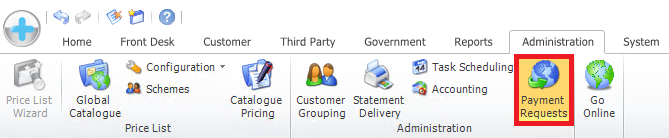 An image that has been annotated to show the Payment Requests page button.
Whenever the Payments Request page is opened a dialog will appear asking if or needs updating, the refresh button can be used to update the payment requests.
Once the page has been updated the Payment Request Status Report will be shown, this displays an overview of any changes to the statuses of the payment requests.
What the Different Statuses Mean
Payments are organised by their status, there are four different statuses these are:
- Sent: This shows any payment requests that have been sent to CityPay that haven't been delivered yet.
- Delivered: If the payment request has been delivered, if multiple delivery methods have been used the payment request will be marked as delivered if one of these has been delivered.
- Not Delivered: If MediBooks doesn't received confirmation from CityPay that they have processed the payment request within 24 hours it will be set to this.
- Paid: These are payment requests that have been paid by the customer but haven't been reconciled with a bill.
- Expired: After a period of time the payment request links used by CityPay will expire, and no longer work, when this happens the payment requests will be marked as Expired. To learn more about this please read: Expired Payment Requests.
- Posted: After a payment request has been reconciled with a bill, the status will be set to Posted.
Viewing Payment Requests with Different Statuses
By default payment requests with the "Sent" status will be shown, this can be changed with the Status dropdown box in the top right of the page.
The details that the payment request was sent to will be shown in the Email/SMS column. If the content of the column is red, this means MediBooks has detected that the payment request hasn't been sent.
Related Articles
Payment Requests
From version 7.27 of MediBooks it is possible to send online payment requests to customers. Payment Requests are a service provided by CityPay, their support details can be found here: Contacts | CityPay. This article will give an overview of all ...Posting Payment Requests
Posting Payment Requests individually Payment requests can be posted on an ad hoc basis (for example when a customer has come into the surgery having already paid some of their outstanding balance. To do this, with the customer already selected open ...Viewing Payment Requests Sent to a Customer
Using the Payment Requests Tool Tab it is possible to view all Payment Requests that have been sent to a customer. This can be accessed by selecting a customer and navigating to the Account screen, at the bottom of the screen select [Payment ...Managing Undelivered Payment Requests
To simplify the management of the Bill Payment Service system MediBooks has a dedicated status for undelivered payment requests, we recommend going through requests with this status on a regular basis (i.e before each statement run). If any Payment ...Expired Payment Requests
You can view payment requests not paid in time from the Payment Requests page. In order to resend the request you will need to send it the same way you would send a payment request usually. This is to ensure that the correct amount is sent to the ...