How to fix Bills with Historic Data Issues
The first step to resolving historic data issues is to select the desired account, this can be done using the Bill ID if it is known by using the following instructions: Searching for Accounts by Bill ID
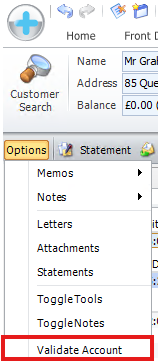
Next, go to the Account Overview, click "Options" and then "Validate Account".
A message will then be shown describing any resolved issues,
Or from version 7.34 a dialog will display any issues along with the action that will be taken to resolve them. Click Fix to resolve the issues.
Related Articles
Importing Bills into MediBooks Using the Clinical System
Support will help you set up the Report in EMIS. Once this has been completed, you will be able to export the results and import them into MediBooks. Exporting the Consultations from EMIS Right click on the report and click Run. After the the report ...Quick Bills
Quick bills can be used to raise bills for frequently billed items for the patient currently selected in the medical system. To learn how to setup quick bills please read the article here: Configuring Quick Bills To create a quick bill click on the ...Configuring Quick Bills
This article will describe how to setup quick bills. Instructions on how to raise quick bills are available here: Quick Bills First, open the invoice screen, then click Pick List and Configure. Use the checkboxes in the Quick Bill column to mark any ...Unpaid Bills / Invoices
To see a list of all unpaid bills go to [Reports]. Click on [Financial], From the dropdown list shown below click on [Account]. set the [Aged Debt as at] to the date you want to see all bills / invoices unpaid from. Click [Run Report]. A list of ...Medicus Syncing Issues
Unable to Access MediBooks error in Medicus If the message contains "Error: invalid request. Username doesn't match current user" check that the current users account in MediBooks is linked to Medicus. Instructions on how to do this are available ...